
Instrument
The instrument tab shows the performance page (if the instrument has one, which will be the case for all factory content), or else it shows the module grid (for your own projects).
The exact look and feel will depend on the instrument you’ve loaded (see Engines).
Here is where you can play and interact with the instrument’s sounds.
You’ll typically find a user interface with various controls designed for real-time manipulation of the sound.
You might encounter abstract visual elements. Don’t hesitate to interact with these – clicking and dragging or turning them often directly affects the instrument’s sonic output in unique and expressive ways. Experiment to discover the possibilities!
The performance page’s design, layout, and complexity can vary significantly, potentially including intricate advanced settings. This section essentially contains all the controls deemed useful for performing the instrument and shaping its sound to a desired degree.
Toolbar
After loading a factory instrument, you’ll always see a number of general items.
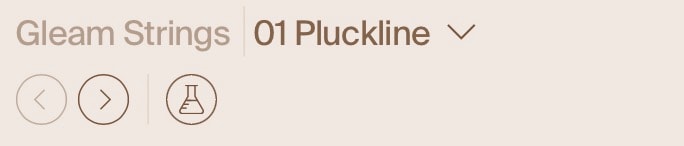
Instrument Name
Patch Name and selector
If you have an active patch, this area will show the patch name. Click on it to see the list of all patches.
Here you can also add a new patch, or create a new instrument.
Previous/Next Patch
Click to go to the previous/next patch.
Grid/Perform UI Toggle
This button toggles between the Grid and the Perform UI.