
Notifications
The notifications area shows status notifications and errors across FFOSSO.
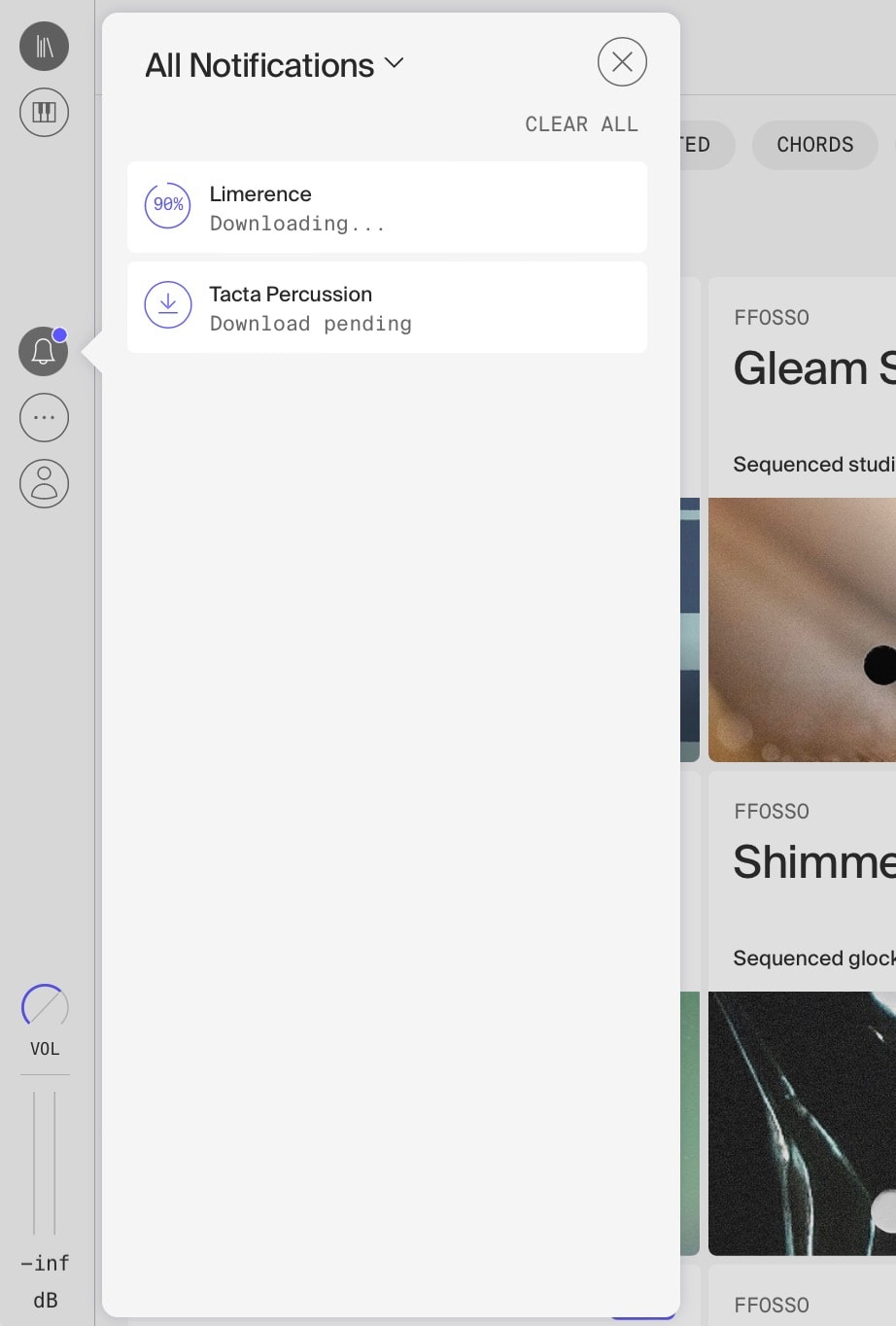
By default it will show all types of notification, but you can show only one particular kind by clicking on “All Notifications”.
This is useful to see, for example, only error messages.
Messages are color-coded:
– Green stands for informative notifications, that tell you about a successful save or status.
– Orange are warnings; read them carefully to see script issues, or similar.
– Red are errors. These might be connectivity issues, or problems accessing files.
Use “Clear all” to dismiss all notifications.
Toasts
Most notifications will show up first as a toast popup in the lower middle of the window.
More serious errors will stay there until dismissed, but most will hide after a few seconds.
You can always find all of the notifications in the Notifications area.
Downloads
Running downloads will also show up in Notifications, with progress indicators for running downloads, as well as pending downloads already listed. Click on the icon of a download to cancel it. Clicking the same icon again will then also delete already downloaded files for that instrument.