
Quick start
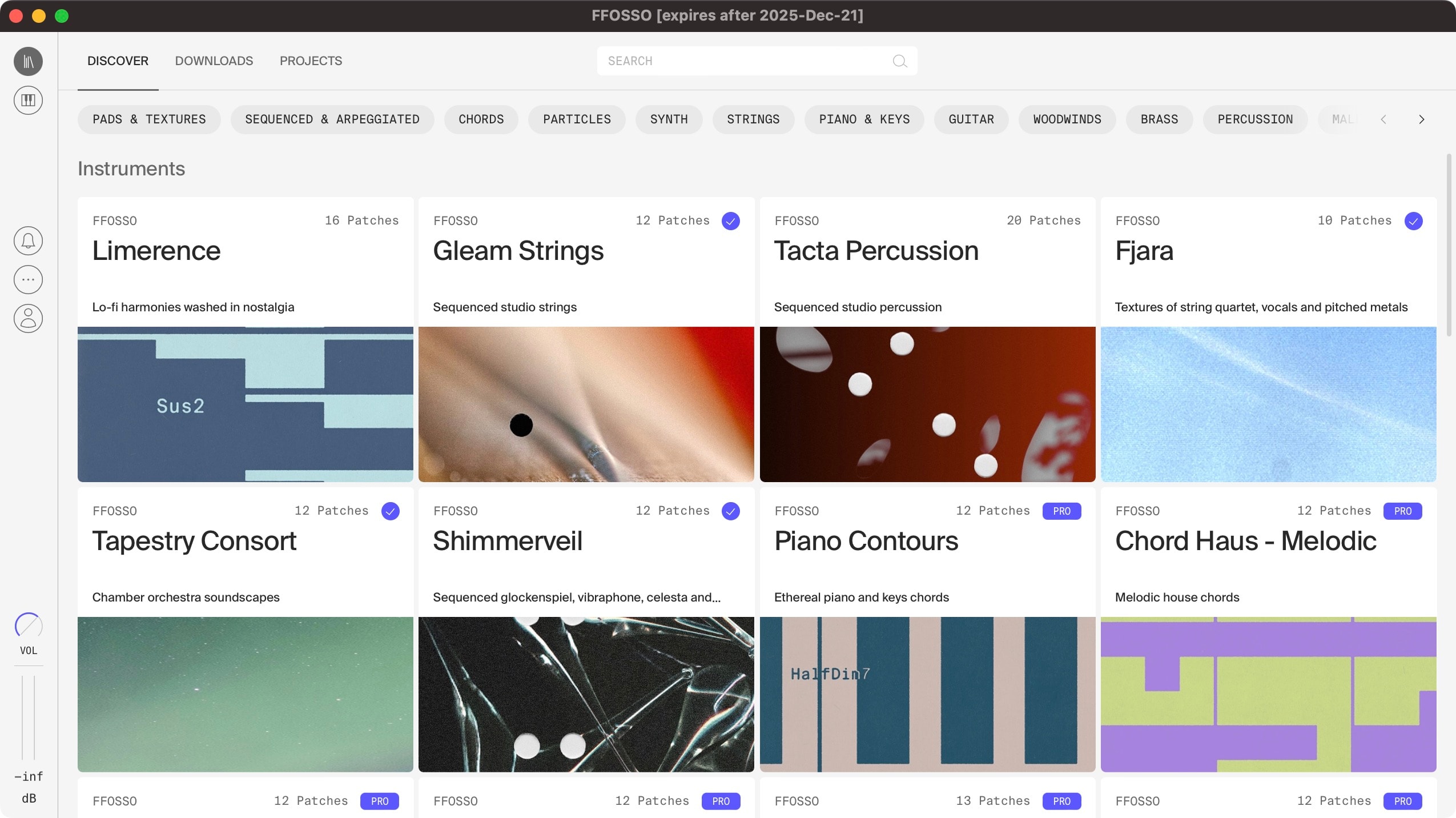
After installing FFOSSO, get started by downloading an instrument from Library – Discover. This view opens when FFOSSO is started – just pick an instrument and click the download icon.
After the download, click the play icon on the instrument tile to load the instrument and go to the Performance View.
Performance View
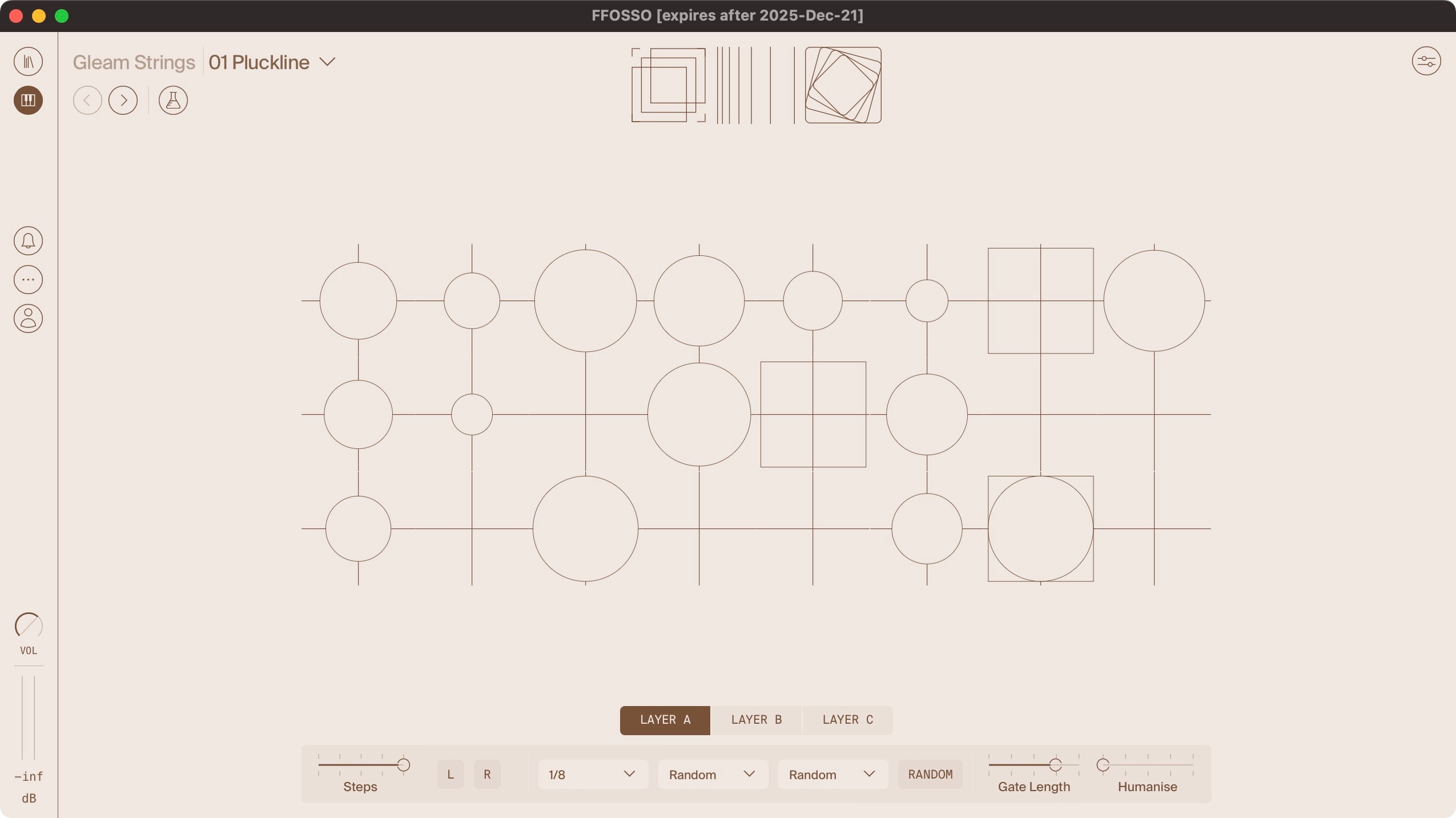
When loading, instruments show their unique UI (if the instrument has one, which all factory instruments do), or the module grid. In both cases, this is where you interact with the controls.
Grid (beta)
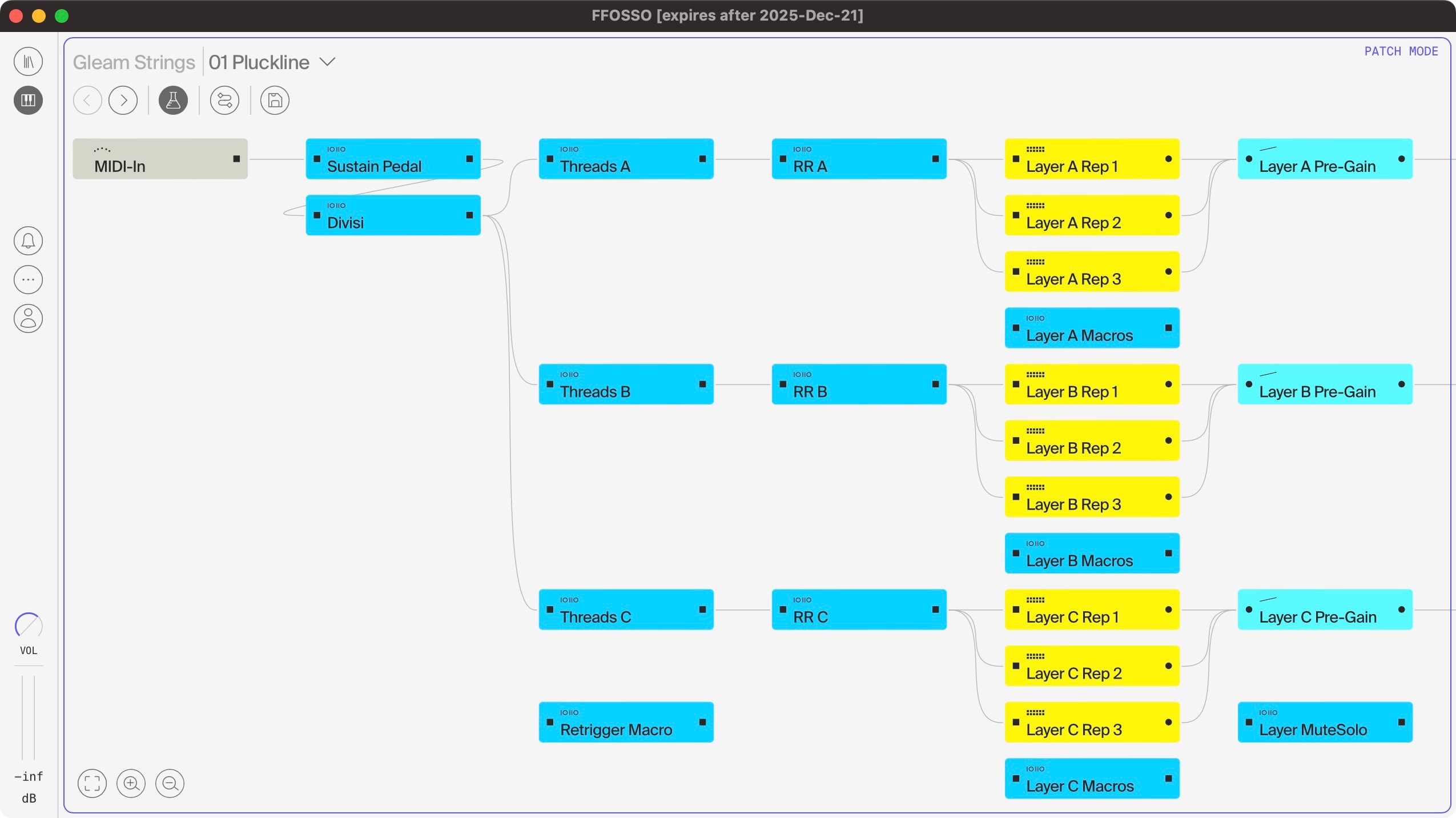
Clicking the Grid button takes you to the module grid, where the whole inner workings of the instrument live.
Instruments in FFOSSO consist of interconnected modules. A module can be anything from a sampler with mapped samples, a reverb effect, or a function, which are pre-made scripts for various tasks.
Each instrument then has patches, which define settings for these modules to call up later.
You can save the current instrument or patch with the save icon at the top.
Navigation rail
Use the navigation rail on the left to go to the Library, the currently loaded instrument, or to access your notifications, where any important messages will appear.
The “…” icon opens a menu with a host of options.
Creating your first instrument
In the patch menu in either the Performance View, or the Grid, click New instrument. If anything is currently loaded, it will be unloaded and you’ll start with a clean slate.
You’ll see the empty module grid, where you can load whatever modules you like. Try a Multi Sampler, and load in a preset with samples from our catalog.
Don’t forget to save!
