Module properties
When you click any loaded module in the grid, the sidebar to the right shows the module properties.
These are where all settings for the module are made.
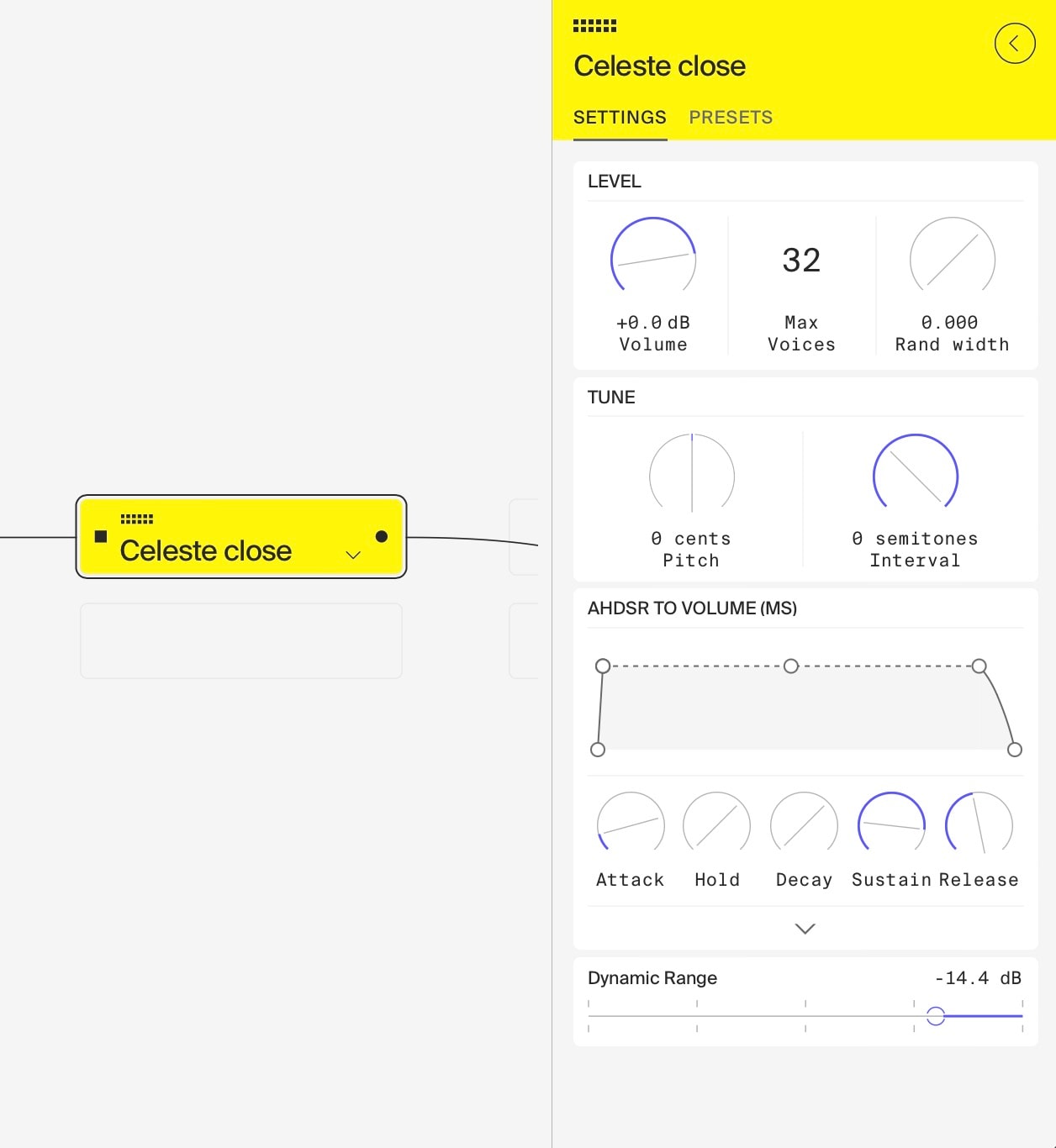
All module properties have three areas:
1. Header
Here an icon and the background color represent the module type.
Click the module name to change it.
2. Settings Tab
This tab holds all individual properties of the module. The exact properties differ between modules, see Modules for details about all of them.
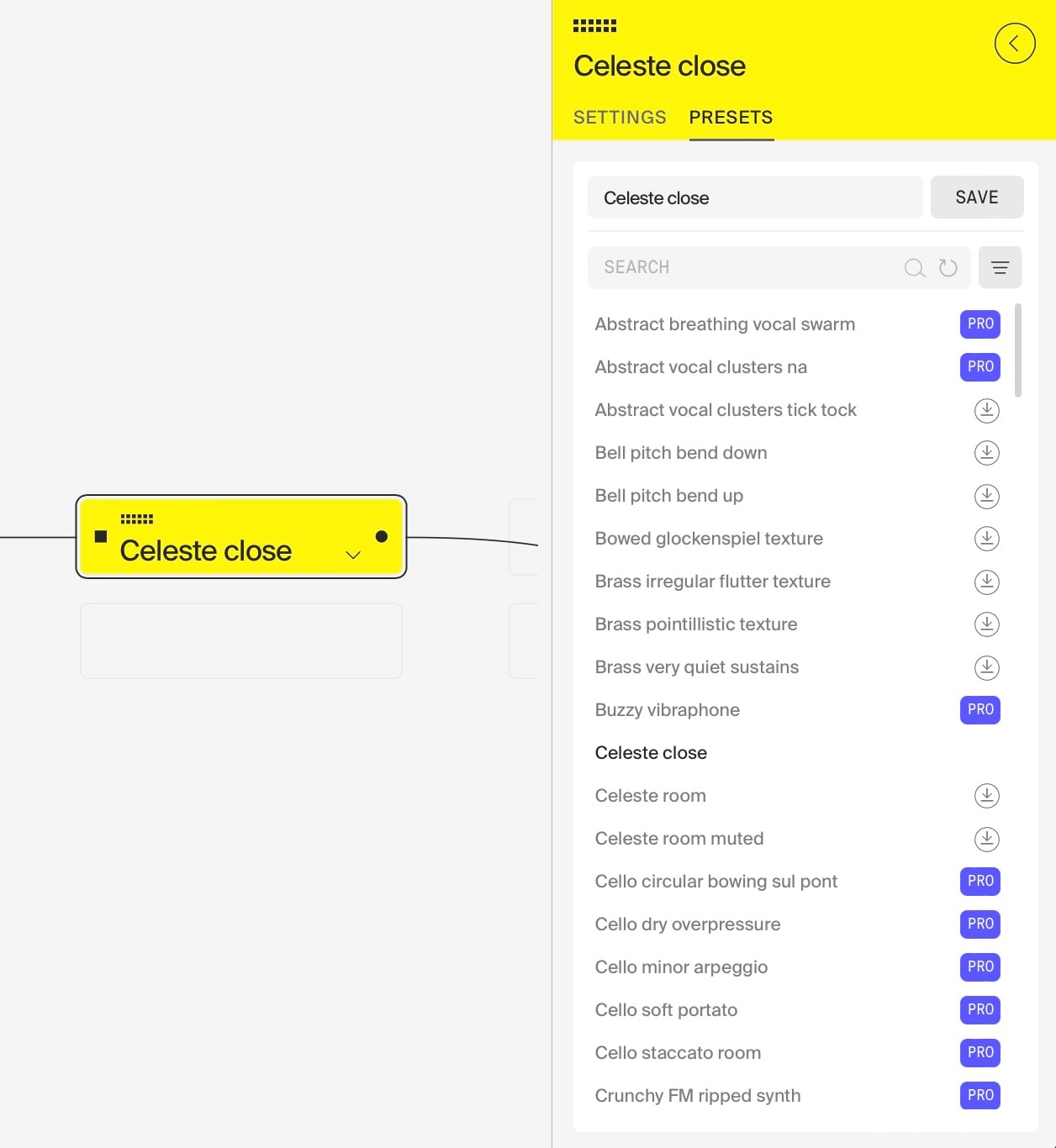
3. Presets Tab
The presets section lets you load and save presets. A preset will contain all the settings of that particular module, so you can load it again in another instrument.
Here you will see all module presets that are ready to load. Not just those that are available to download from the cloud. To download these, or to delete already downloaded/added presets, select the module in the sidebar of the grid.
When saving a preset, note that each preset is unique; so multiple presets can have the same name. If you want to replace a preset, remove the existing one first.