Adding and removing modules
When you enter the Module Grid, the sidebar to the right shows all available modules.
Each module has its own colour to make them easy to tell apart.
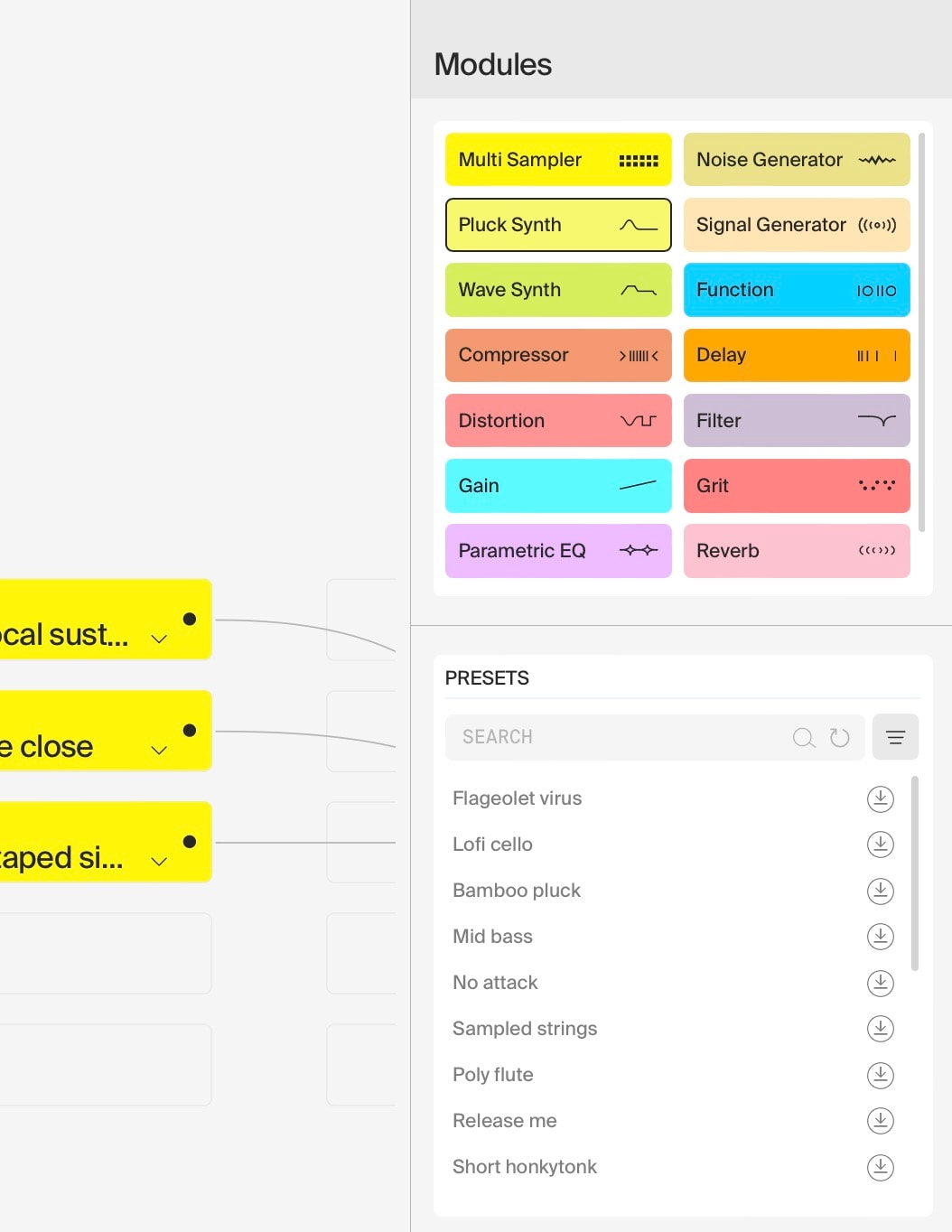
You can either add in a module with its default settings directly from here, just by dragging it from the sidebar to any place on the grid, or add a Module Preset.
Module Presets are pre-made modules populated with content or settings, ready to use.
Click on a module name to show the available presets in the list below.
You can download any presets not yet downloaded to your machine by clicking on the download icon to its right. Available presets are shown grayed out.
Once a preset is downloaded, you can drag it into the grid anywhere you like.
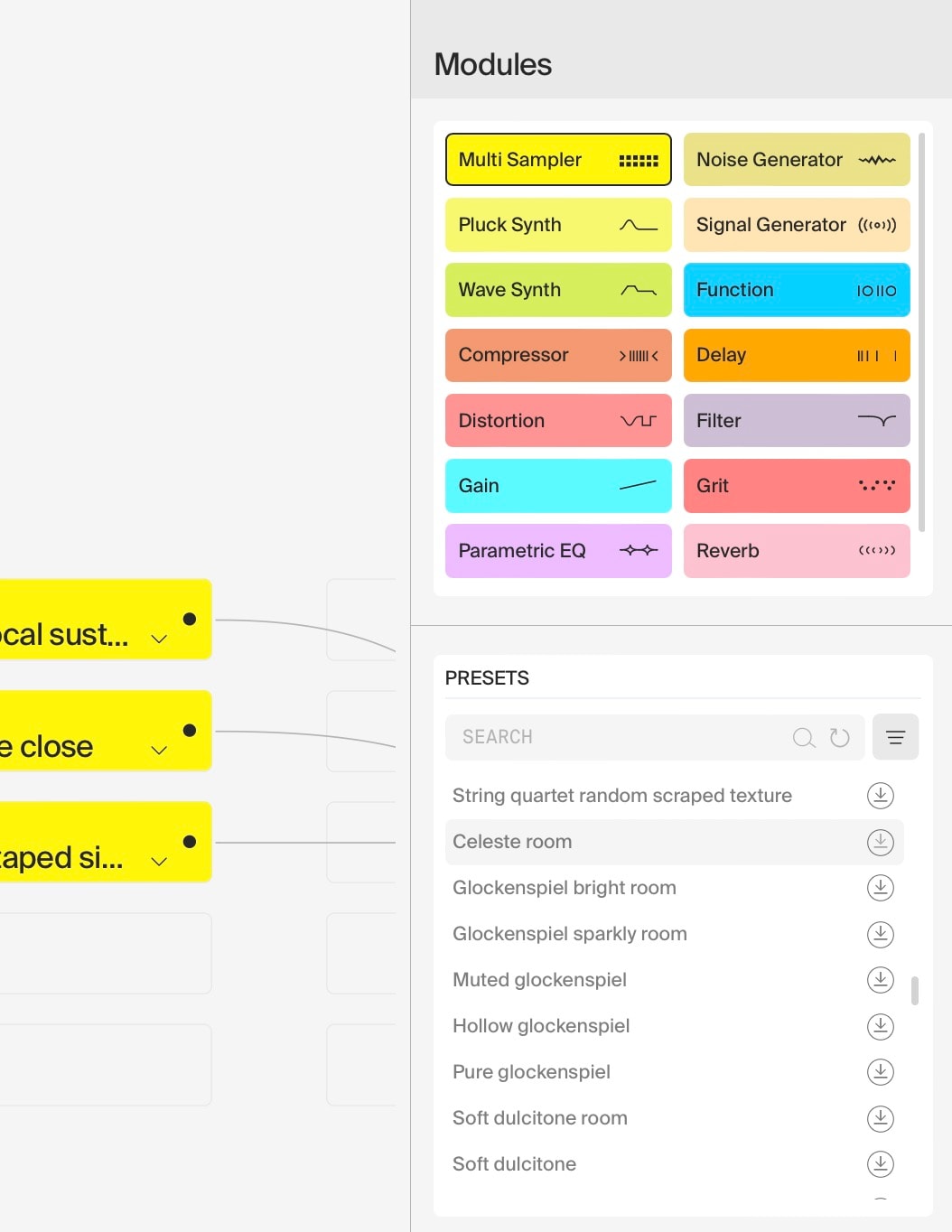
Note that some modules may not have downloadable presets.
Of course you can also create your own presets in the Module properties.
If you want to remove a downloaded module preset, or one you have created yourself, click on the trashcan icon to its right.
If the deleted preset was from the cloud, you can of course re-download it at any time.
Modules work by sending MIDI, Audio, or parameters between them. FFOSSO will intelligently connect modules with wires by default, but you can change these wires or re-route them any time.
Just click the connector of a module and drag to connect it to another module. Keep in mind that it is not possible to connect different data types, for example Audio to MIDI! MIDI wires use a square icon, while audio wires use a round icon. This makes it easy to tell them apart.
To delete a wire, click the wire to select it, and delete it with Backspace.
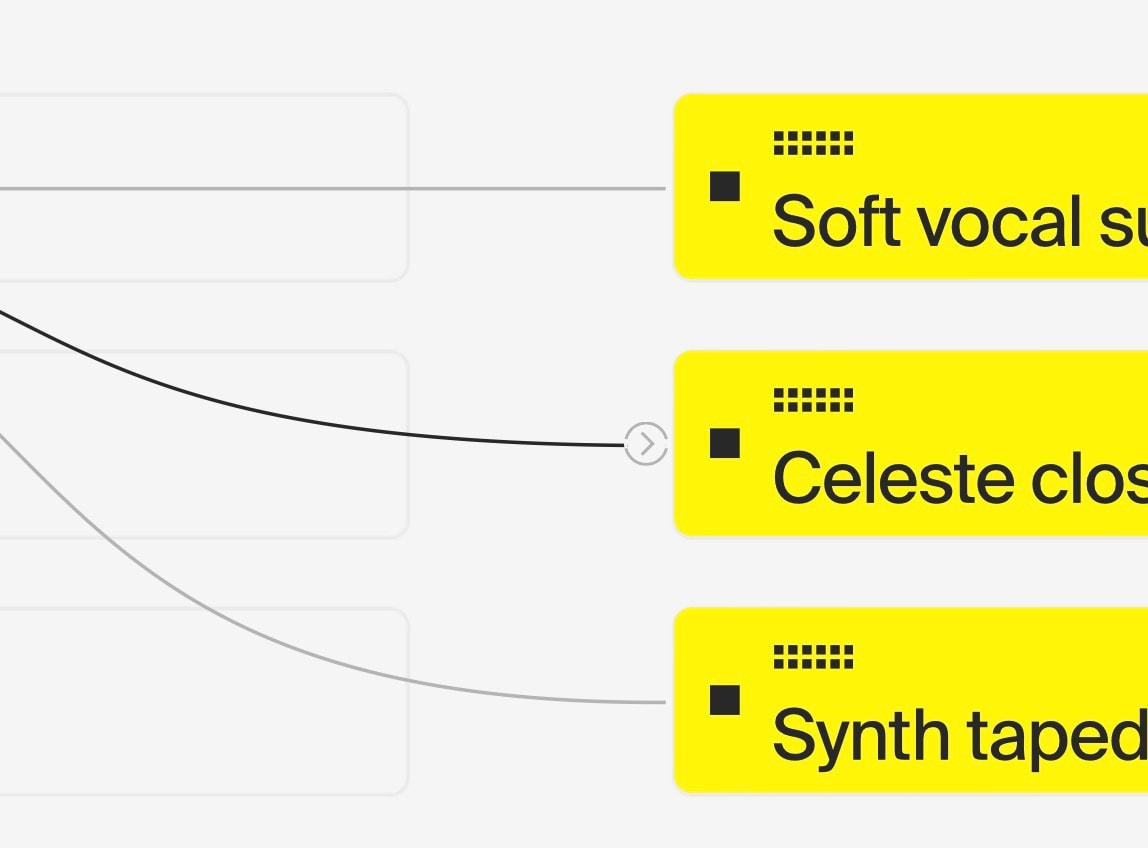
Some modules have multiple outputs. When at least one connection between two modules is present, you can click the chip next to the wire connector to go into a more detailed view.
Here you can connect individual pins with their counterparts on the other module.
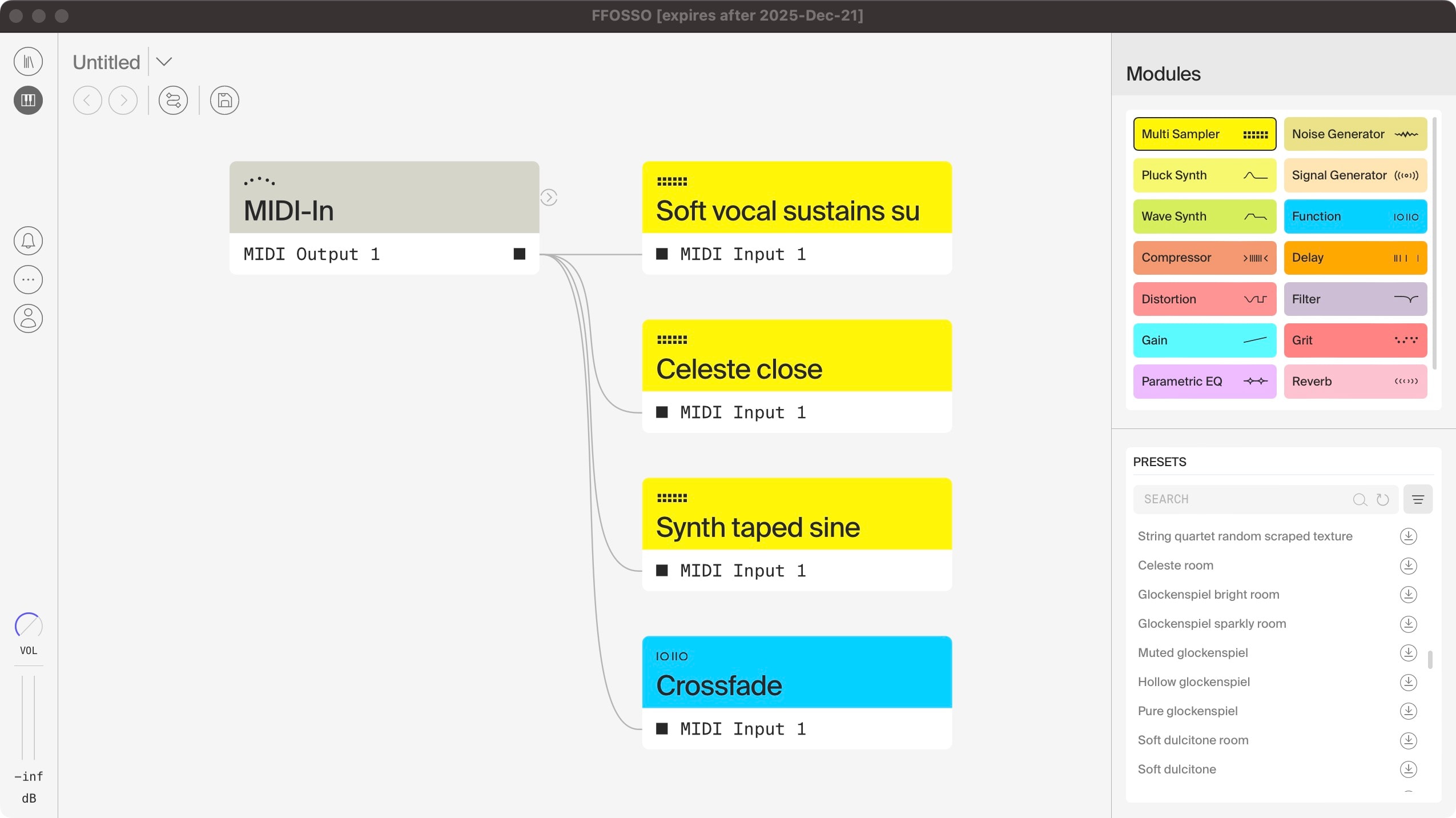
MIDI and Audio connections are made directly in the grid. Whenever you call up the grid after loading an instrument, the wires you see are of this kind.
FFOSSO also supports custom parameters, controlled by what we call “signals”. A signal is a piece of information flowing from one point to another. These are neither MIDI, nor audio, but essentially custom information that can have various formats. Signals are defined within functions, and are exposed to the outside between modules.
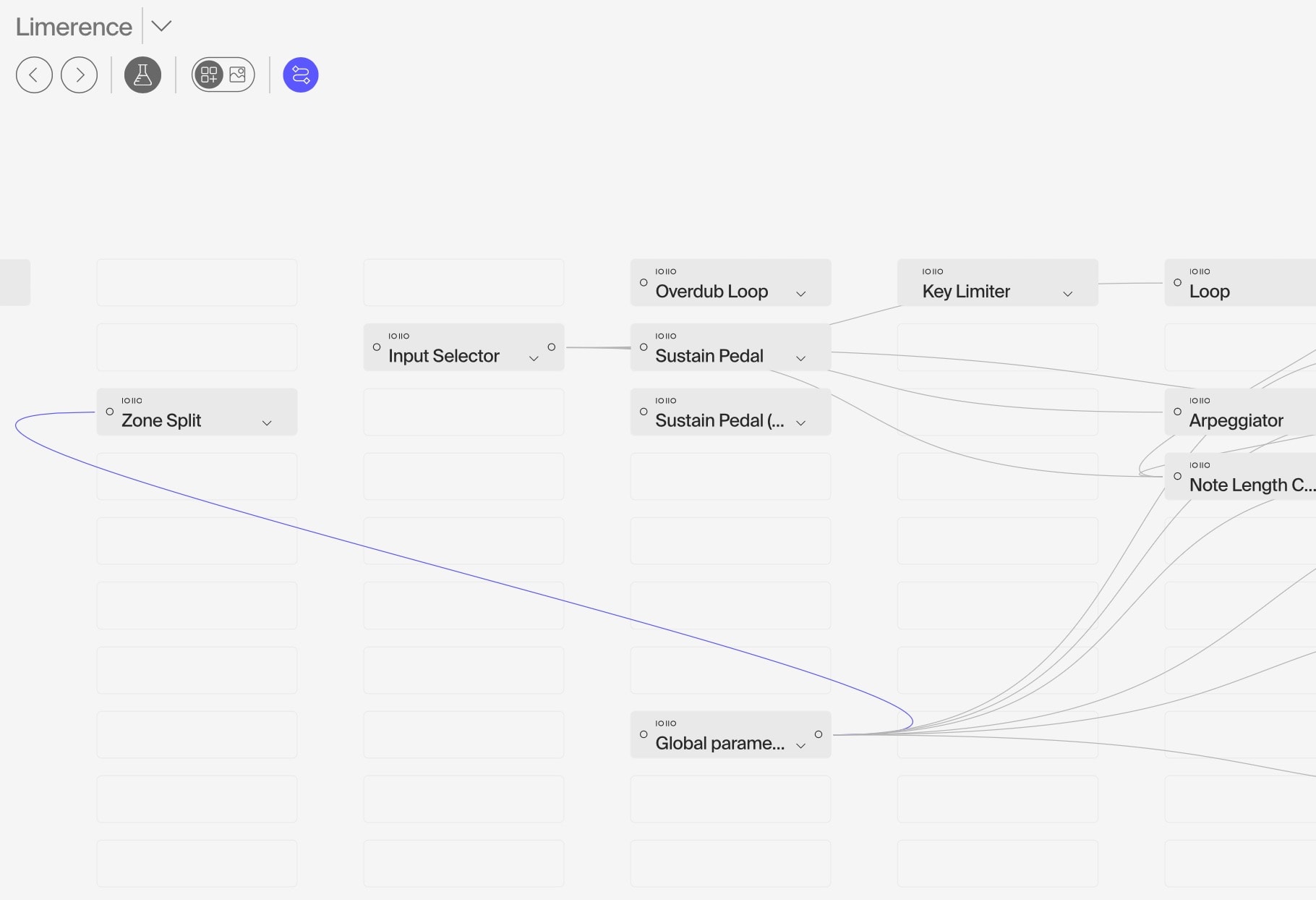
These signals have wires, too. But they are displayed in their own view, dubbed Signals View. You can toggle between the regular wires and Signals View with the respective button at the top of the grid. Whenever you are in Signals View, the colours of the modules will fade out.
Connecting signals works the same way as connecting MIDI/audio wires. You can also click any chip to enter the detailed view, just as with regular connections
Functions will often expose their parameters in the sidebar section of the module. Here you can directly connect parameters, just by selecting their destinations from the dropdown menu.